
Filling in YAML files for tariff options
In the parameters/<OPTION_NAME>.yaml files, describe all tariff options (for details, see the section Tariff option types) that will be used in at least one tariff plan.
Each separate YAML file corresponds to one tariff option. It describes the tariff option settings, and for paid options — the cost.
A detailed description of the parameters used to describe tariff options is provided in the section YAML file of a tariff option.
Fill in the parameters/<OPTION_NAME>.yaml file as follows:
-
Specify the
actionsparameter. -
In the
schemasection, set the following parameters:description— the name of the tariff option.hint— the description of the tariff option (optional).type— the type of the tariff option. Specifyinteger.const— the value of the tariff option.
actions:- create- updateschema:description: System disk sizehint: In GBtype: integerconst: 20
Figure 1 shows how the option described above will be displayed in the tariff plan configuration wizard.

Fill in the parameters/<OPTION_NAME>.yaml file as follows:
-
Specify the
actionsparameter. -
In the
schemasection, set the following parameters:description— the name of the tariff option.hint— the description of the tariff option (optional).type— the type of the tariff option. Specifyinteger.enum— the possible values of the tariff option.default— the default value.
actions:- create- updateschema:description: Number of servers in the clustertype: integerenum: [3, 5, 7]default: 5
Figure 2 shows how the option described above will be displayed in the tariff plan configuration wizard.

Fill in the parameters/<OPTION_NAME>.yaml file as follows:
-
Specify the
actionsparameter. -
In the
schemasection, set the following parameters:-
description— the name of the tariff option. -
hint— the description of the tariff option (optional). -
type— the type of the tariff option. Specifyinteger. -
default— the default value (optional).If the parameter is not set, the default value will be
0. -
minimumandmaximum— the maximum and minimum values of the tariff option (optional).
-
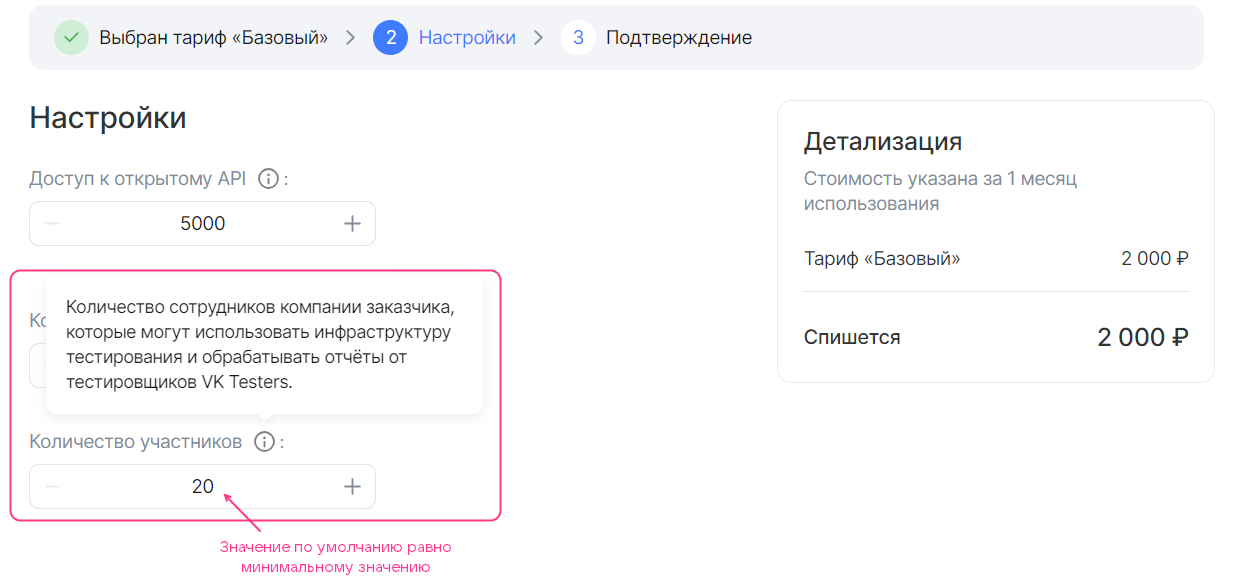
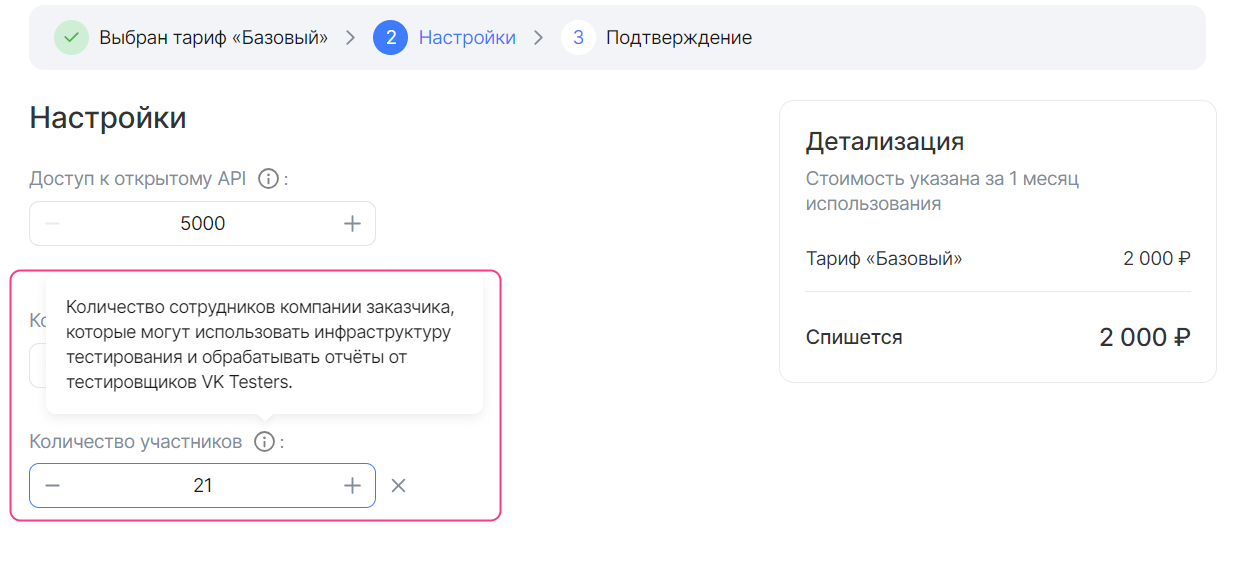
actions:- create- updateschema:description: Number of participantshint: The number of the customer's employees who can use the testing infrastructure and process reports from VK Testers testers.type: integerdefault: 20minimum: 20
Figures 3 and 4 show how the option described above will be displayed in the tariff plan configuration wizard.
Fill in the parameters/<OPTION_NAME>.yaml file as follows:
-
Specify the
actionsparameter. -
In the
billingsection, set the following parameters:base— the standard value.cost— the cost of the change step. Specify0.unit.size— the size of the change step.unit.measurement— the units of measurement of the tariff option (optional).
Example of filling in the `billing` sectionbilling:base: 25cost: 0unit:size: 100 -
In the
schemasection, set the following parameters:-
description— the name of the tariff option. -
hint— the description of the tariff option (optional). -
type— the type of the tariff option. Specifyinteger. -
default— the default value (optional). It is set relative to the standard value of the option:-
Do not specify the
defaultparameter or specify0so that the default value equals the standard value (figure 5).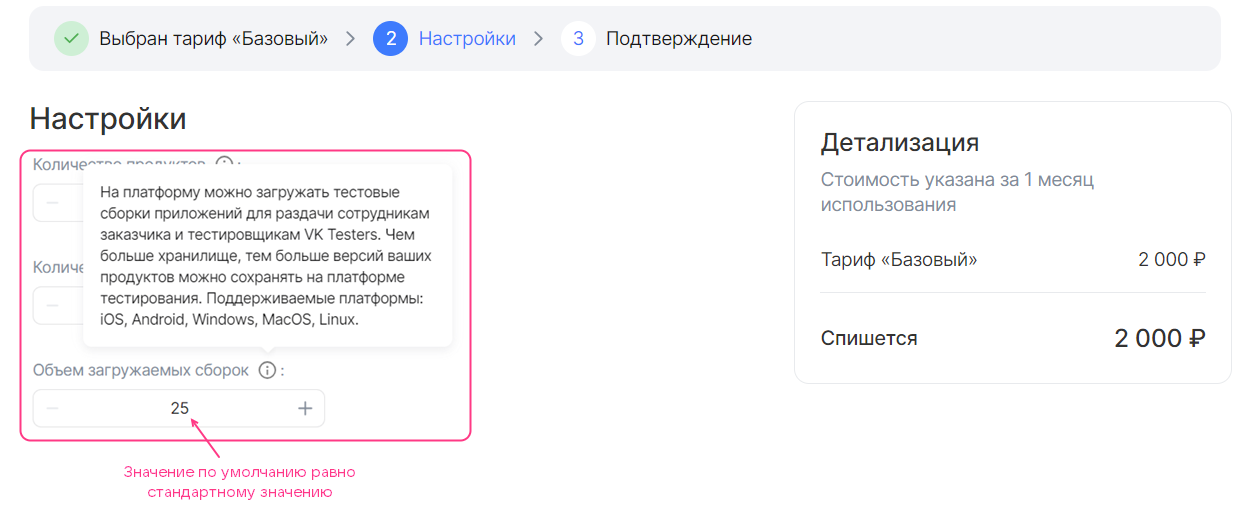 Figure 5 — Free tariff option of the integer type with a custom change step (billing.base = 25, schema.default = 0, billing.unit.size = 100)
-
Specify
nso that the default value is calculated using the formula based on the standard value and the value ofn(figure 6, figure 7):billing.base + n * billing.unit.size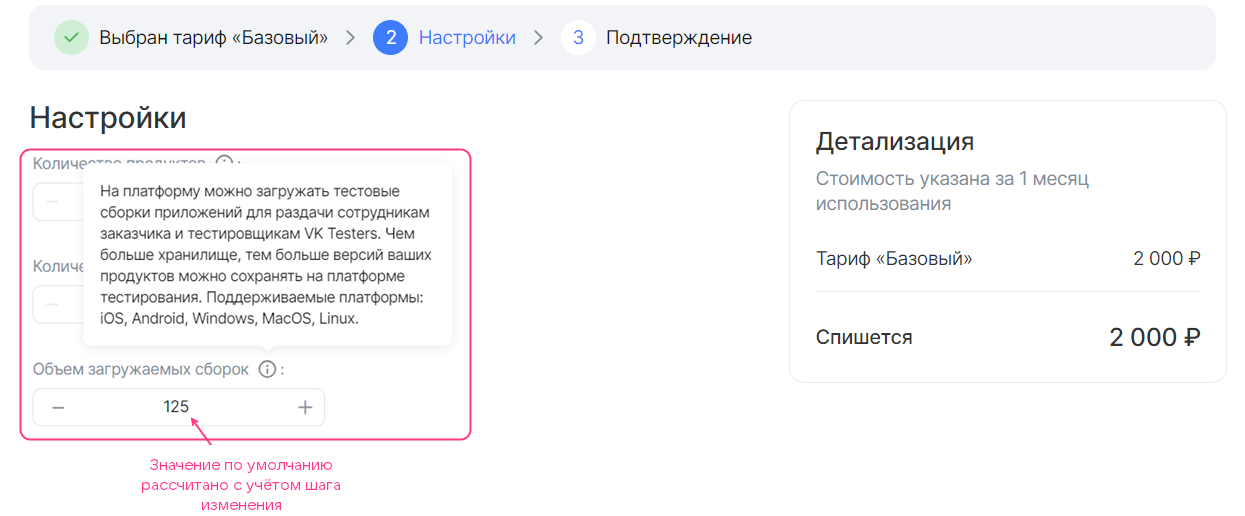 Figure 6 — Free tariff option of the integer type with a custom change step (billing.base = 25, schema.default = 1, billing.unit.size = 100)
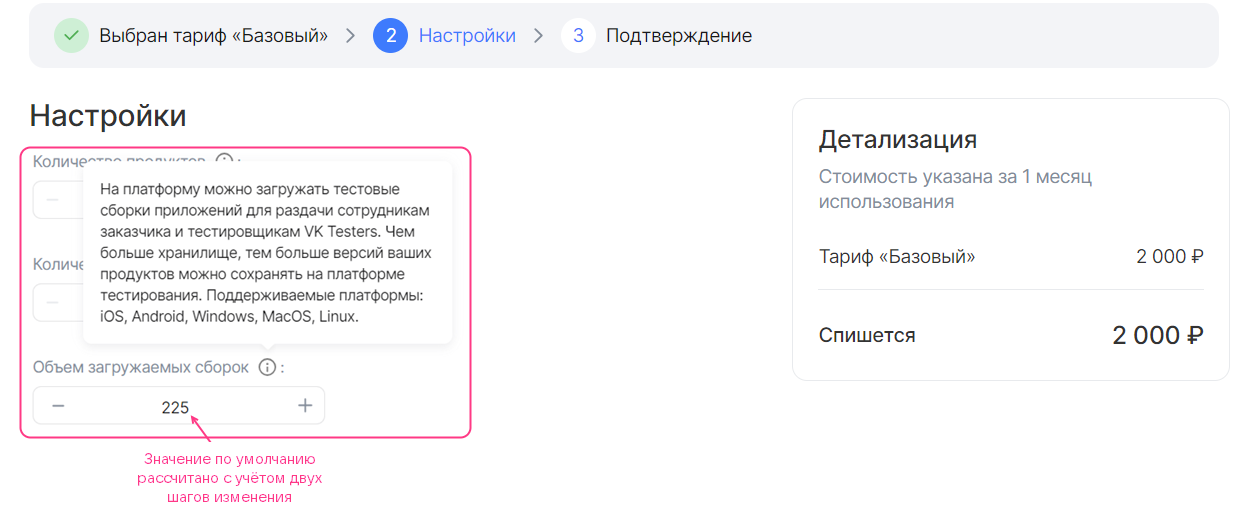 Figure 7 — Free tariff option of the integer type with a custom change step (billing.base = 25, schema.default = 2, billing.unit.size = 100)
-
-
minimumandmaximum— the maximum and minimum values of the tariff option (optional). They are set in the same way as the default value.
-
actions:- create- updatebilling:base: 25cost: 0unit:size: 100schema:description: Volume of uploaded buildshint: Test builds of applications can be uploaded to the platform for distribution to the customer's employees and VK Testers testers. The larger the storage, the more versions of your products can be stored on the testing platform. Supported platforms: iOS, Android, Windows, MacOS, Linux.type: integerdefault: 0
Fill in the parameters/<OPTION_NAME>.yaml file as follows:
-
Specify the
actionsparameter. -
In the
billingsection, set the following parameters (figure 8, figure 9, figure 10):-
base— the standard value. The standard value is included in the cost of the tariff plan. -
cost— the cost of the change step. -
unit.size— the size of the change step. -
unit.measurement— the units of measurement of the tariff option (optional).Example of filling in the `billing` sectionbilling:base: 25cost: 150unit:size: 100In the example above, every 100 units of the option in addition to the standard value cost 150 monetary units.
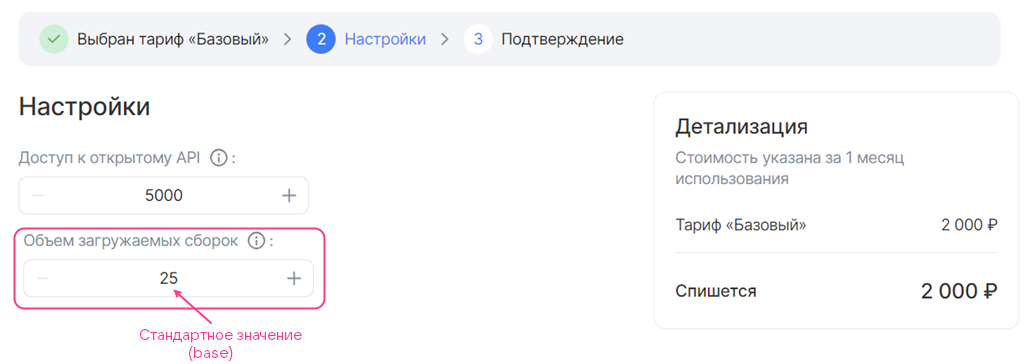 Figure 8 — Paid tariff option of the integer type with a change step (billing.base = 25, billing.cost = 150, billing.unit.size = 100)
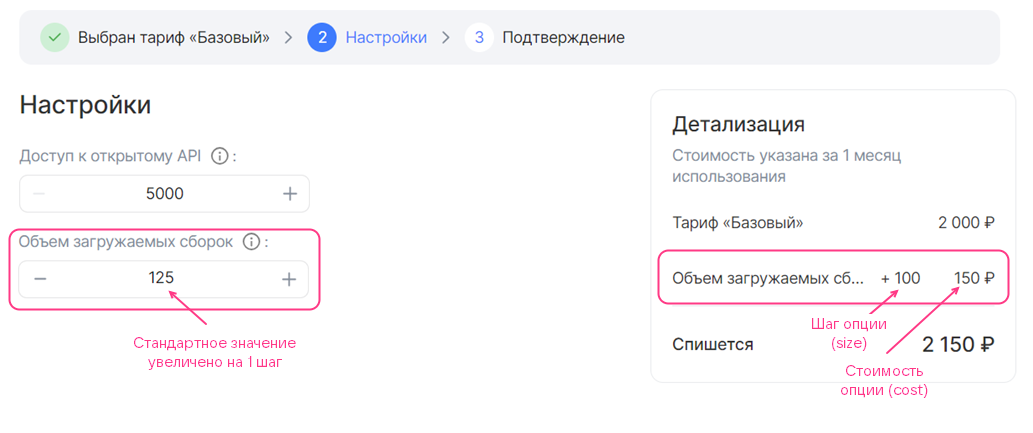 Figure 9 — Paid tariff option of the integer type with a change step, the value increased by 1 step (billing.base = 25, billing.cost = 150, billing.unit.size = 100)
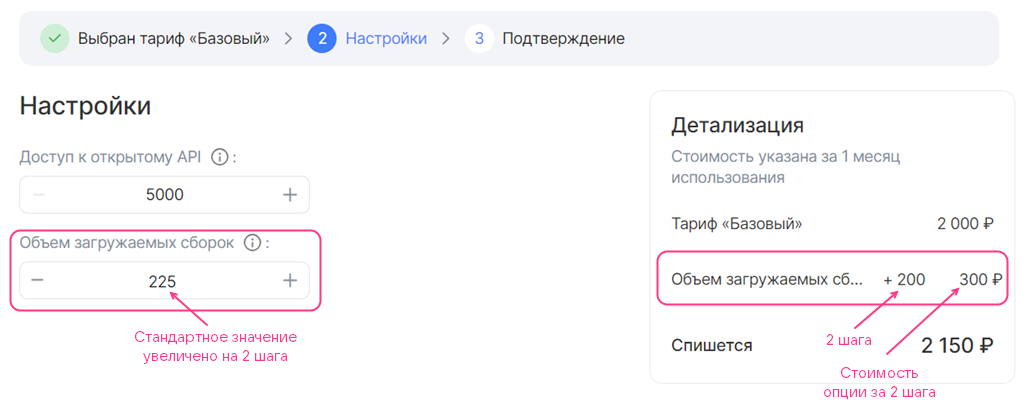 Figure 10 — Paid tariff option of the integer type with a change step, the value increased by 2 steps (billing.base = 25, billing.cost = 150, billing.unit.size = 100)
-
-
Fill in the
schemasection in the same way as for a free tariff option with a custom change step (for details, see the section Free tariff option of the integer type with a custom change step).If the default value of a tariff option is not equal to the standard value (
schema.default ≠ 0), then when the user opens the tariff plan configuration wizard, the cost of such a tariff option will be displayed (figure 11). The user can reduce the option value to the standard one, which is included in the cost of the tariff plan.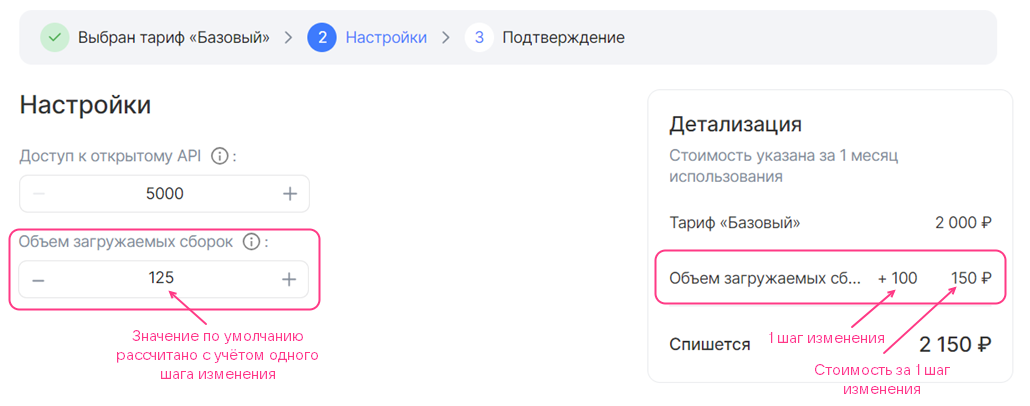 Figure 11 — Paid tariff option of the integer type with a change step (billing.base = 25, billing.cost = 150, billing.unit.size = 100, schema.default = 1)
Fill in the parameters/<OPTION_NAME>.yaml file as follows:
-
Set the
actionsparameter value —resource_usages. -
In the
billingsection, set the following parameters:cost— the cost of one unit of the tariff option.unit.size— the billing step. Specify1.unit.measurement— the units of measurement of the tariff option (optional).
-
In the
schemasection, set the following parameters:description— the name of the tariff option.hint— the description of the tariff option (optional).type— the type of the tariff option. Specifyintegerornumber.
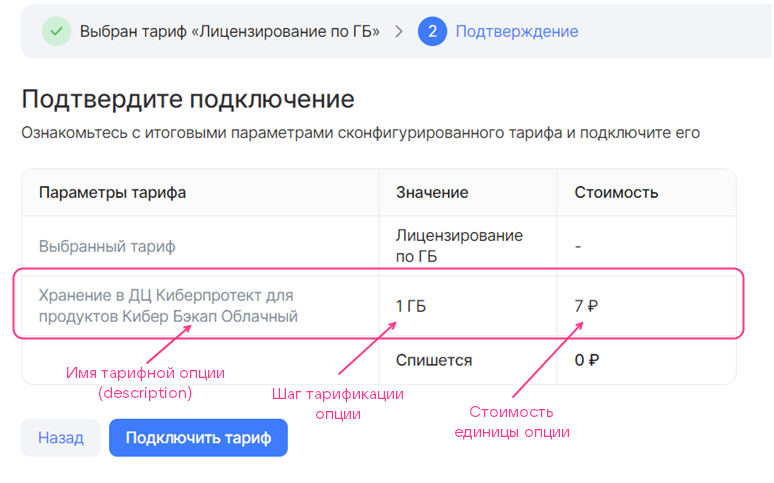
actions:- resource_usagesbilling:cost: 7unit:size: 1measurement: GBschema:description: Storage in the Cyberprotect data center for Cloud Backup productstype: number
Figure 12 shows how the option described above will be displayed in the tariff plan configuration wizard. One unit of the tariff option costs 7 monetary units.
Fill in the parameters/<OPTION_NAME>.yaml file as follows:
-
Specify the
actionsparameter. -
In the
schemasection, set the following parameters:description— the name of the tariff option.hint— the description of the tariff option (optional).type— the type of the tariff option. Specifystring.const— the value of the tariff option.
actions:- create- updateschema:description: Administrator logintype: stringconst: admin@example.ru
Figure 13 shows how the option described above will be displayed in the tariff plan configuration wizard.

Fill in the parameters/<OPTION_NAME>.yaml file as follows:
-
Specify the
actionsparameter. -
In the
schemasection, set the following parameters:description— the name of the tariff option.hint— the description of the tariff option (optional).type— the type of the tariff option. Specifystring.default— the default value.- Additional parameters provided in the section The schema section for a tariff option of the string type (optional).
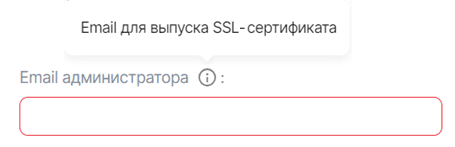
actions:- create- updateschema:description: Administrator emailhint: Email for issuing an SSL certificatetype: string
Figure 14 shows how the option described above will be displayed in the tariff plan configuration wizard.
Fill in the parameters/<OPTION_NAME>.yaml file as follows:
-
Specify the
actionsparameter. -
In the
schemasection, set the following parameters:description— the name of the tariff option.hint— the description of the tariff option (optional).type— the type of the tariff option. Specifystring.enum— the possible values of the tariff option.default— the default value.
actions:- create- updateschema:description: OS typehint: Operating systemtype: stringenum: ["Ubuntu 20.4", "Windows 8.1", "Windows 10"]default: Windows 8.1
Figure 15 shows how the option described above will be displayed in the tariff plan configuration wizard.

Fill in the parameters/<OPTION_NAME>.yaml file as follows:
-
Specify the
actionsparameter. -
In the
schemasection, set the following parameters:description— the name of the tariff option.hint— the description of the tariff option (optional).type— the type of the tariff option. Specifyboolean.const— the value of the tariff option.
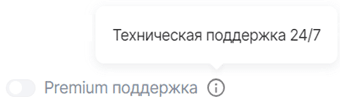
actions:- create- updateschema:description: Premium supporthint: 24/7 technical supporttype: booleanconst: false
Figure 16 shows how the option described above will be displayed in the tariff plan configuration wizard.
Fill in the parameters/<OPTION_NAME>.yaml file as follows:
-
Specify the
actionsparameter. -
In the
schemasection, set the following parameters:-
description— the name of the tariff option. -
hint— the description of the tariff option (optional). -
type— the type of the tariff option. Specifyboolean. -
default— the default value (optional).If the
defaultparameter is not set, the default value will befalse.
-
actions:- create- updateschema:description: Update notificationshint: Whether to receive email notifications about new service versions.type: booleandefault: true
Figure 17 shows how the option described above will be displayed in the tariff plan configuration wizard.

Fill in the parameters/<OPTION_NAME>.yaml file as follows:
-
Specify the
actionsparameter. -
In the
schemasection, set the following parameters:-
description— the name of the tariff option. -
hint— the description of the tariff option (optional). -
type— the type of the tariff option. Specifyboolean. -
default— the default value (optional).If the
defaultparameter is not set, the default value will befalse.
-
-
In the
billingsection, set thecostparameter — the cost of the option when the toggle is in the active position.
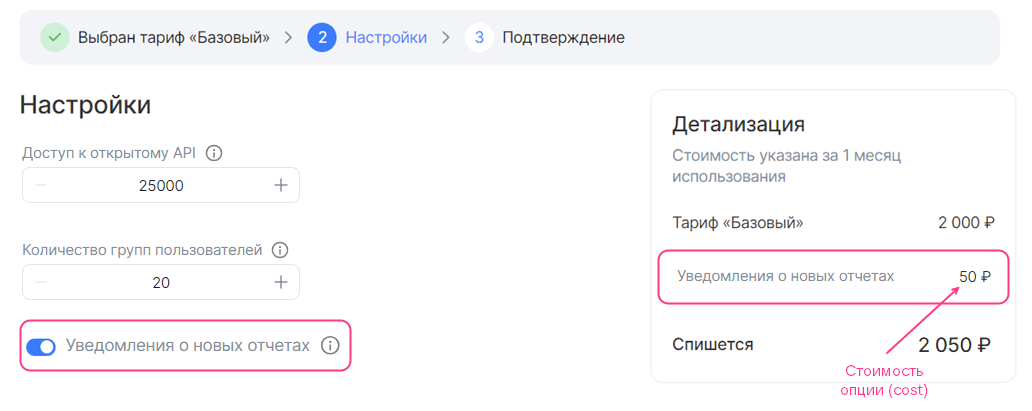
actions:- create- updateschema:description: New report notificationshint: Whether to receive email notifications about new reportstype: booleandefault: truebilling:cost: 50
Figure 18 shows how the option described above will be displayed in the tariff plan configuration wizard.
Fill in the parameters/<OPTION_NAME>.yaml file as follows:
-
Specify the
actionsparameter. -
In the
schemasection, set the following parameters:description— the name of the tariff option.hint— the description of the tariff option (optional).type— the type of the tariff option. Specifystring.datasource.type— the type of the cloud platform entity. Specifyflavor.datasource.filter— filters (optional). The available filters are described in the section The schema section for a datasource-type tariff option.
actions:- create- updateschema:description: Virtual machine typetype: stringdatasource:type: flavor
Figure 19 shows how the option described above will be displayed in the tariff plan configuration wizard.

Fill in the parameters/<OPTION_NAME>.yaml file as follows:
-
Specify the
actionsparameter. -
In the
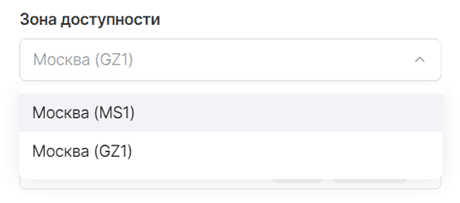
schemasection, set the following parameters:description— the name of the tariff option.hint— the description of the tariff option (optional).type— the type of the tariff option. Specifystring.default— the default value (optional). The available values are described in the section The schema section for a datasource-type tariff option.datasource.type— the type of the cloud platform entity. Specifyaz.
actions:- create- updateschema:description: Availability zonetype: stringdefault: gz1datasource:type: az
Figure 20 shows how the option described above will be displayed in the tariff plan configuration wizard.
Fill in the parameters/<OPTION_NAME>.yaml file as follows:
-
Specify the
actionsparameter. -
In the
schemasection, set the following parameters:description— the name of the tariff option.hint— the description of the tariff option (optional).type— the type of the tariff option. Specifystring.datasource.type— the type of the cloud platform entity. Specifysubnet.
actions:- create- updateschema:description: Networktype: stringdatasource:type: subnet
Figure 21 shows how the option described above will be displayed in the tariff plan configuration wizard.

Fill in the parameters/<OPTION_NAME>.yaml file as follows:
-
Specify the
actionsparameter. -
In the
schemasection, set the following parameters:description— the name of the tariff option.hint— the description of the tariff option (optional).type— the type of the tariff option. Specifystring.datasource.type— the type of the cloud platform entity. Specifynetwork.datasource.value_is— the type of information output. The available values are:uuid— display the network UUID.name— display the network name.
datasource.filter— filters (optional). The available filters are described in the section The schema section for a datasource-type tariff option.
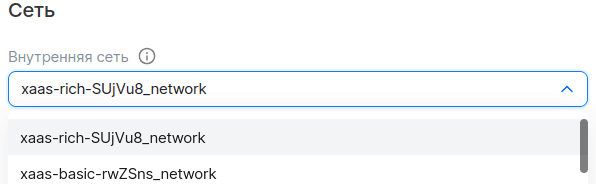
actions:- create- updateschema:description: Internal networkhint: Internal networktype: stringdatasource:type: networkvalue_is: namefilter:kind: privateshared: false
Figure 22 shows how the option described above will be displayed in the tariff plan configuration wizard.
A disk is described by two tariff options (two separate YAML files):
- Disk type — using a
datasourcetype tariff option. - Disk size — using an
integertype tariff option with a change step of 1.
To describe a disk:
-
Describe a
datasourcetype tariff option that retrieves data about disk types from the cloud platform, in theparameters/<OPTION_NAME>.yamlfile:-
Specify the
actionsparameter. -
In the
schemasection, set the following parameters:-
description— the name of the tariff option. -
hint— the description of the tariff option (optional). -
type— the type of the tariff option. Specifystring. -
default— the default value (optional). The available values are described in the section The schema section for a datasource-type tariff option. -
tag— a tag. The tag links the option describing the disk type with the option describing the disk size. -
datasource.type— the type of the cloud platform entity. Specifyvolume_type. -
datasource.filter— filters (optional). The available filters are described in the section The schema section for a datasource-type tariff option.If no filters are specified, all disk types supported by the cloud platform will be displayed.
-
Example description of a `datasource` option for the disk type, `YAML` formatactions:- create- updateschema:description: Disk typetype: stringdefault: ceph-ssdtag: disk1datasource:type: volume_typefilter:disk_class:enum: ["ssd", "hdd"] -
-
In a separate
parameters/<OPTION_NAME>.yamlfile, describe the disk size using anintegertype tariff option with a change step of 1:-
Specify the
actionsparameter. -
In the
schemasection, set the following parameters:description— the name of the tariff option.hint— the description of the tariff option (optional).type— the type of the tariff option. Specifyinteger.default— the default value (optional).maximumandminimum— the maximum and minimum values (optional).tag— a tag. The value must be the same as in the file describing the disk type.
Example description of the disk size using an `integer` type tariff option with a change step of 1, `YAML` formatactions:- create- updateschema:description: Disk sizetype: integerdefault: 100minimum: 100tag: disk1 -
Figure 23 shows how the options described above (disk type and size) will be displayed in the tariff plan configuration wizard.
