
Installing and configuring Harbor
In this article, we will look at how to install and configure Harbor repository repositories. After that, you can configure application auto-deployment to a Kubernetes cluster.
Before installing Harbor:
Harbor is installed as a Docker image using the online installer.
To install the Harbor repositories:
- Download the online installer script and unzip it:
root@ubuntu-std3-2-4-40gb:~# wget https://github.com/goharbor/harbor/releases/download/v1.9.3/harbor-online-installer-v1.9.3.tgzroot@ubuntu-std3-2-4-40gb:~# tar -zxvf harbor-online-installer-v1.9.3.tgz
- In the resulting harbor directory, configure the
harbor.ymlfile:
hostname: <SERVER_DNS_NAME>http:# port for http, default is 80. If https enabled, this port will redirect to https portport: 8080# https related confighttps:# # https port for harbor, default is 443port: 8443# # The path of cert and key files for nginxcertificate: /opt/gitlab/config/ssl/<SERVER_DNS_NAME>.crtprivate_key: /opt/gitlab/config/ssl/<SERVER_DNS_NAME>.key# The default data volumedata_volume: /opt/harbor
And:
- The hostname is the same as the GitLab name because the deployment is done on the server that hosts GitLab.
- Non-standard HTTP and HTTPS ports are used, as the standard ones are used by the GitLab web interface.
- Uses the LetsEncrypt certificate and key that was created when you set up GitLab.
- Run the
install.shscript:
root@ubuntu-std3-2-4-40gb:~/harbor# ./install.sh[Step 0]: checking installation environment ...Note: docker version: 19.03.5Note: docker-compose version: 1.25.0[Step 1]: preparing environment ...[Step 2]: starting Harbor ...Creating harbor-log ... doneCreating registryctl ... doneCreating redis ... doneCreating harbor-db ... doneCreating harbor portal ... doneCreating registry ... doneCreating harbor-core ... doneCreating nginx ... doneCreating harbor-jobservice ... done✔ ----Harbor has been installed and started successfully.----
Harbor launched.
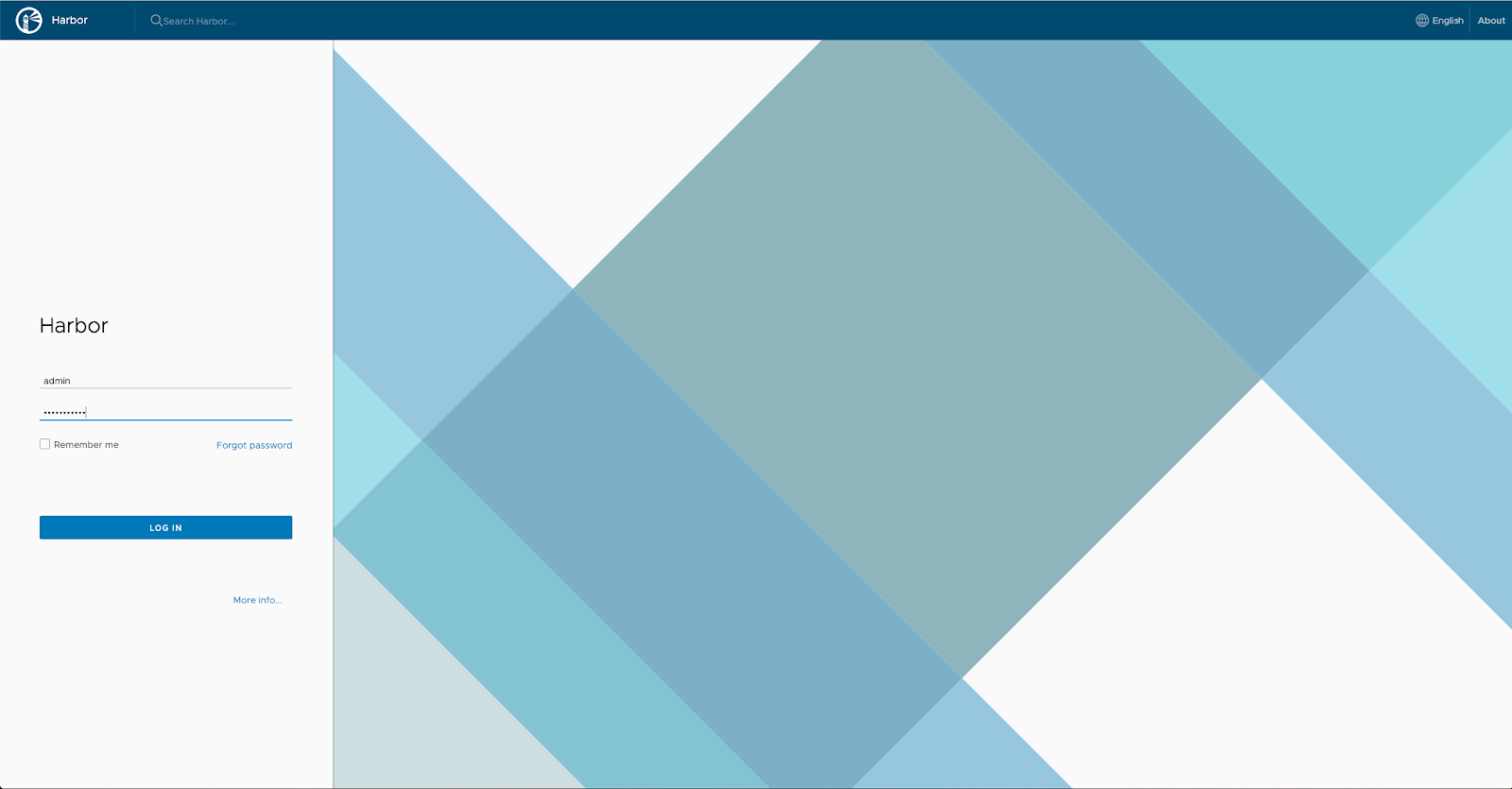
- Sign in to Harbor.
Since we are using non-standard ports, the URL will look like this:
https://<SERVER_DNS_NAME>:8443
The default login is admin. The primary password is set in the harbor.yml file (default is Harbor12345).
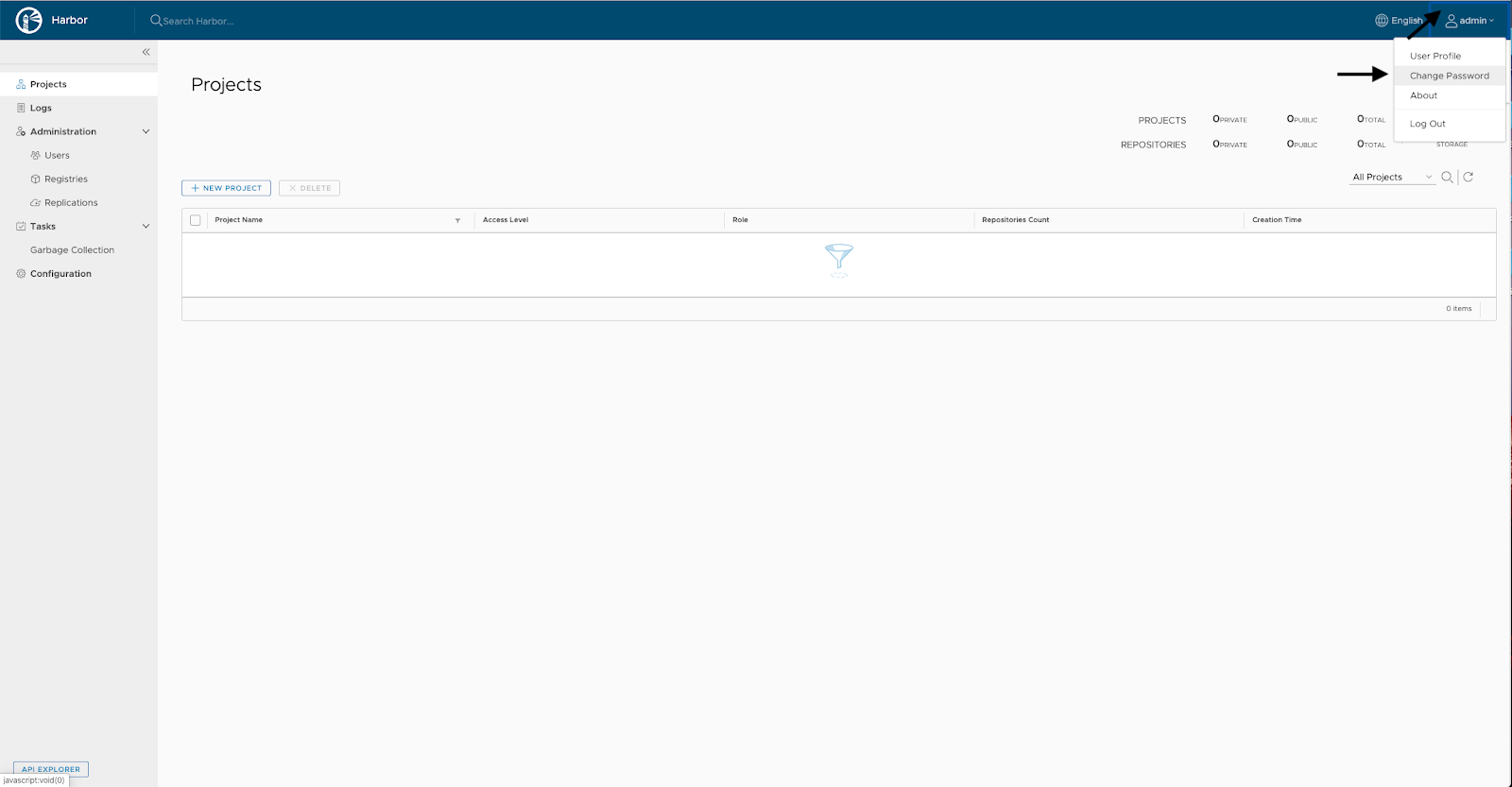
- Change the password for the admin user. To do this, click on admin in the upper right corner and select Change Password:
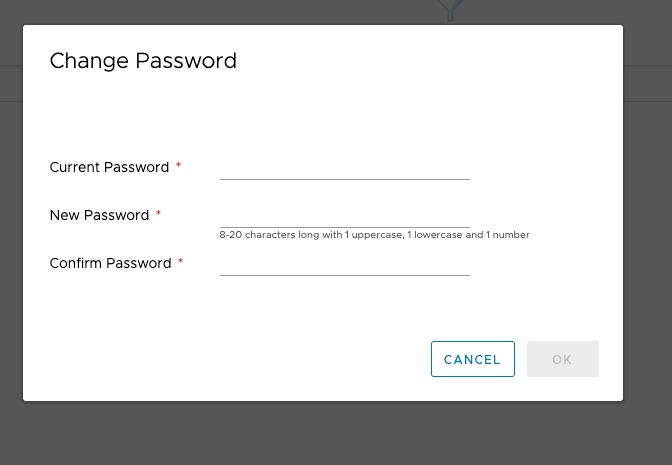
- Specify the current and new passwords:
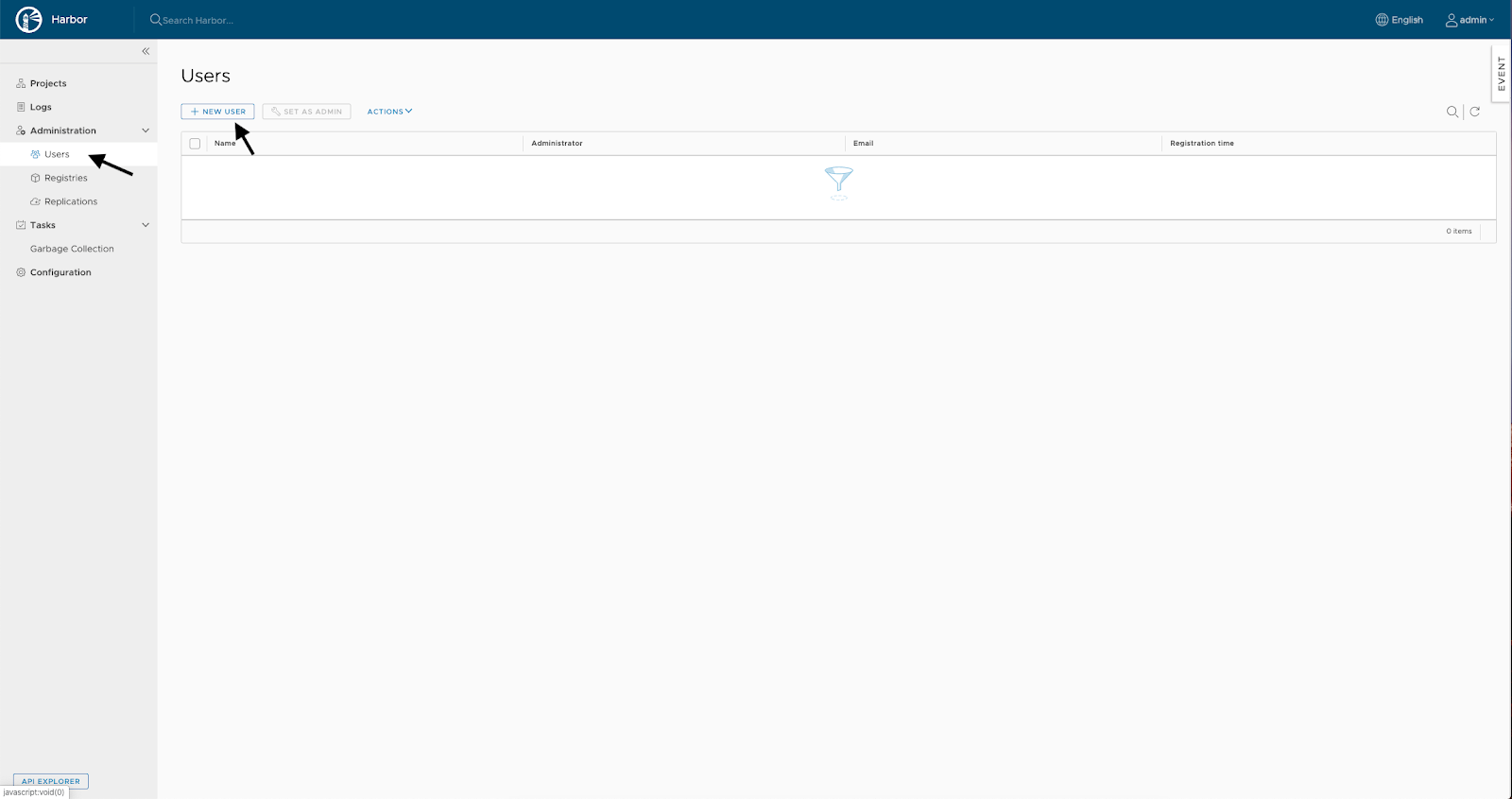
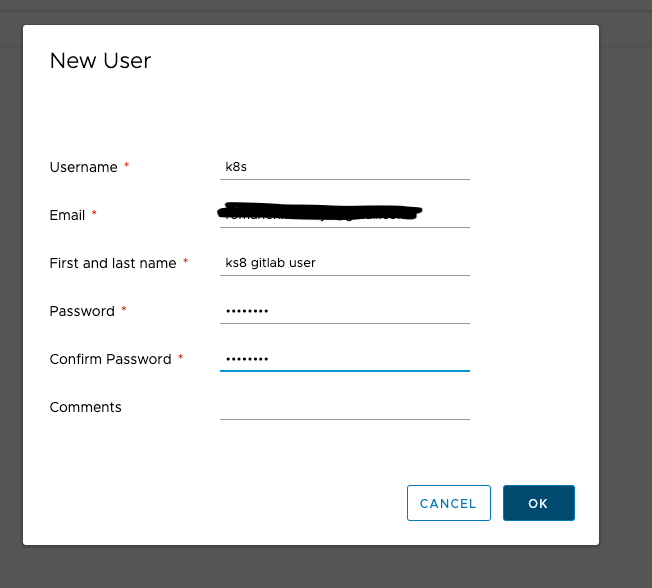
- Create a user under which GitLab will work with Harbor. To do this, select Users on the left:
- Specify the data of the new user:
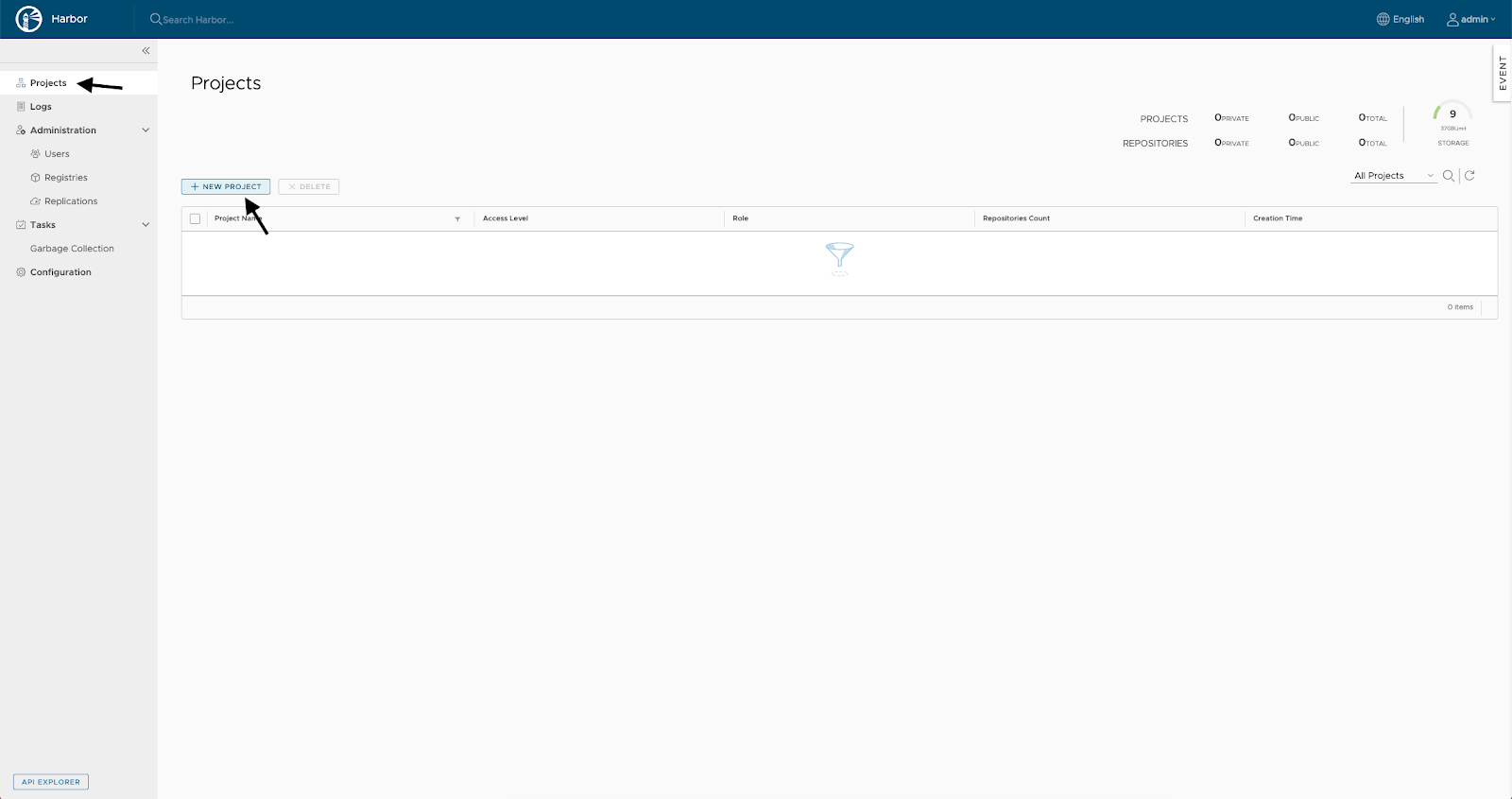
- Create a new project that will contain the built images from GitLab. To do this, select Projects on the left:
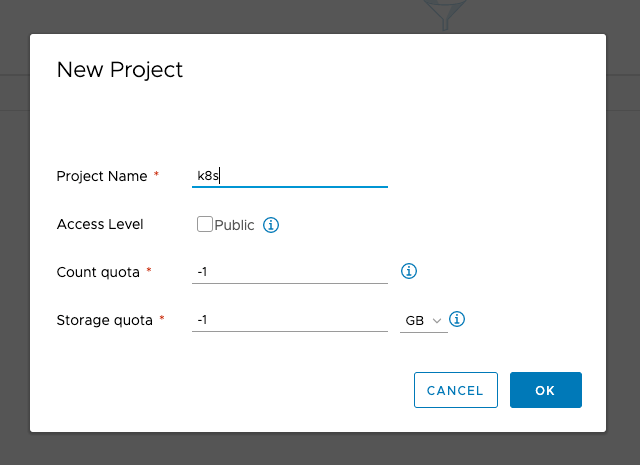
- Enter the details of the new project:
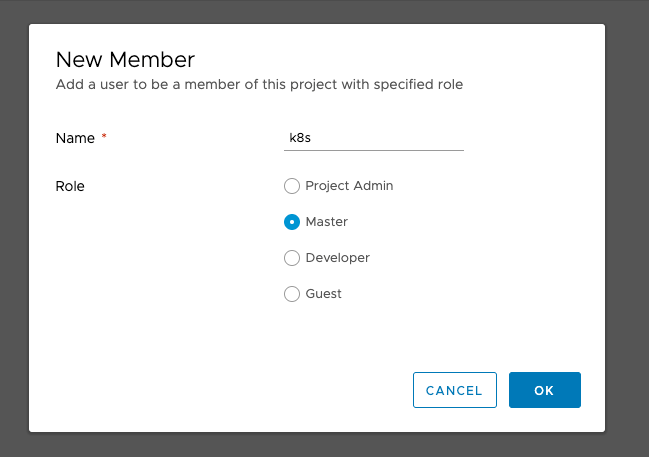
- Add a user to the project:
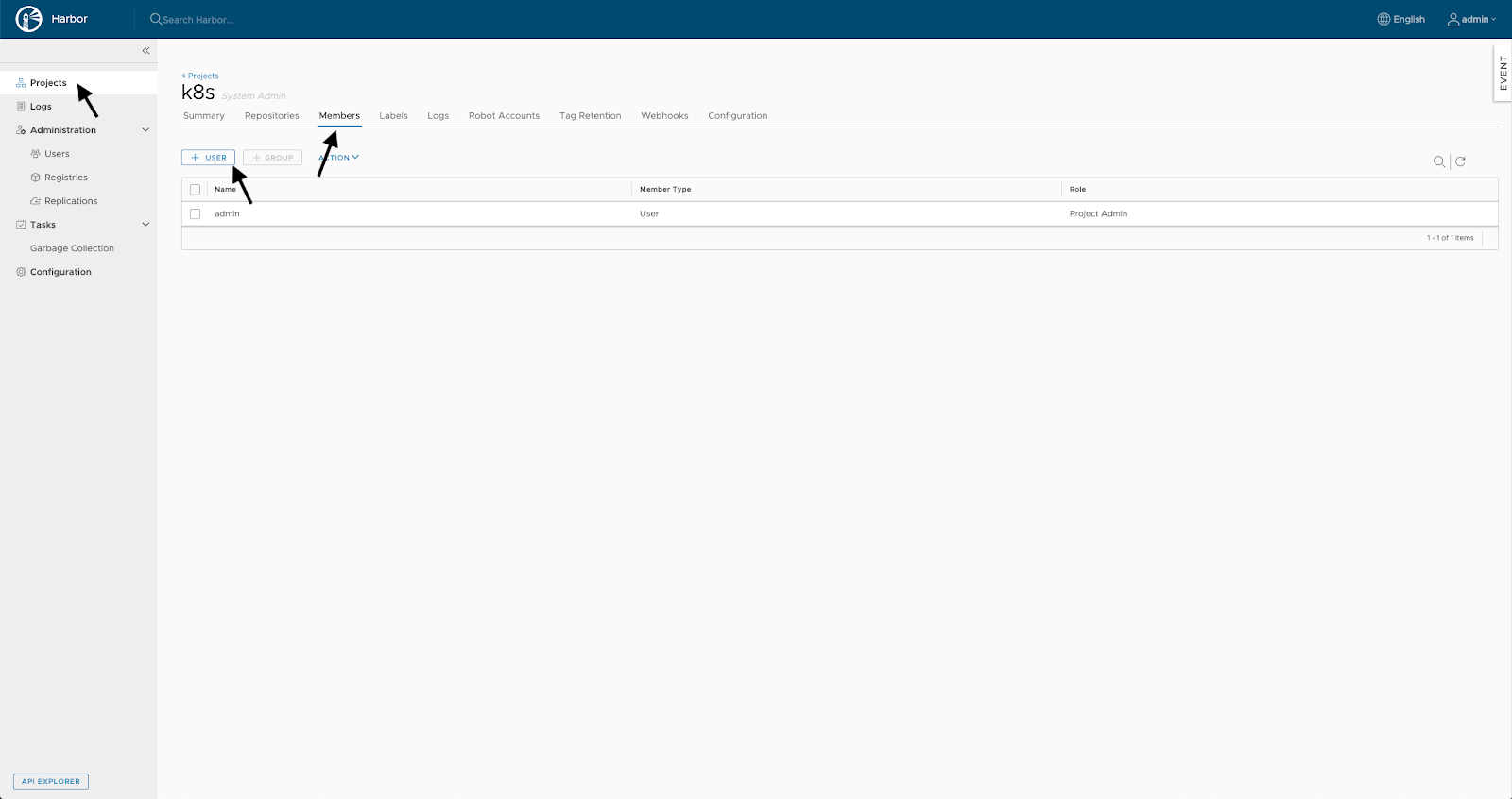
- Specify a name and role for the user:
Now set up auto-deployment of the application to the Kubernetes cluster.
Was this article helpful?